ES-DE Overlay
Set up
Install
Download es-de-overlay-<version>.apk from the latest release and open it on the device. Android asks once to allow installs from the app that opened it, such as your browser or file manager. Or let Obtainium install it and its updates, from https://github.com/clintonium-119/es-de-overlay.
Release APKs are signed with a different key from a build of your own. To switch between the two, uninstall first. Uninstalling clears the app’s settings, so set it up again afterwards.
Build from source
Needs JDK 17 and the Android SDK (platform 36).
JAVA_HOME=/usr/lib/jvm/java-17-openjdk ./gradlew testDebugUnitTest assembleDebug
adb install -r app/build/outputs/apk/debug/app-debug.apk
Set up once
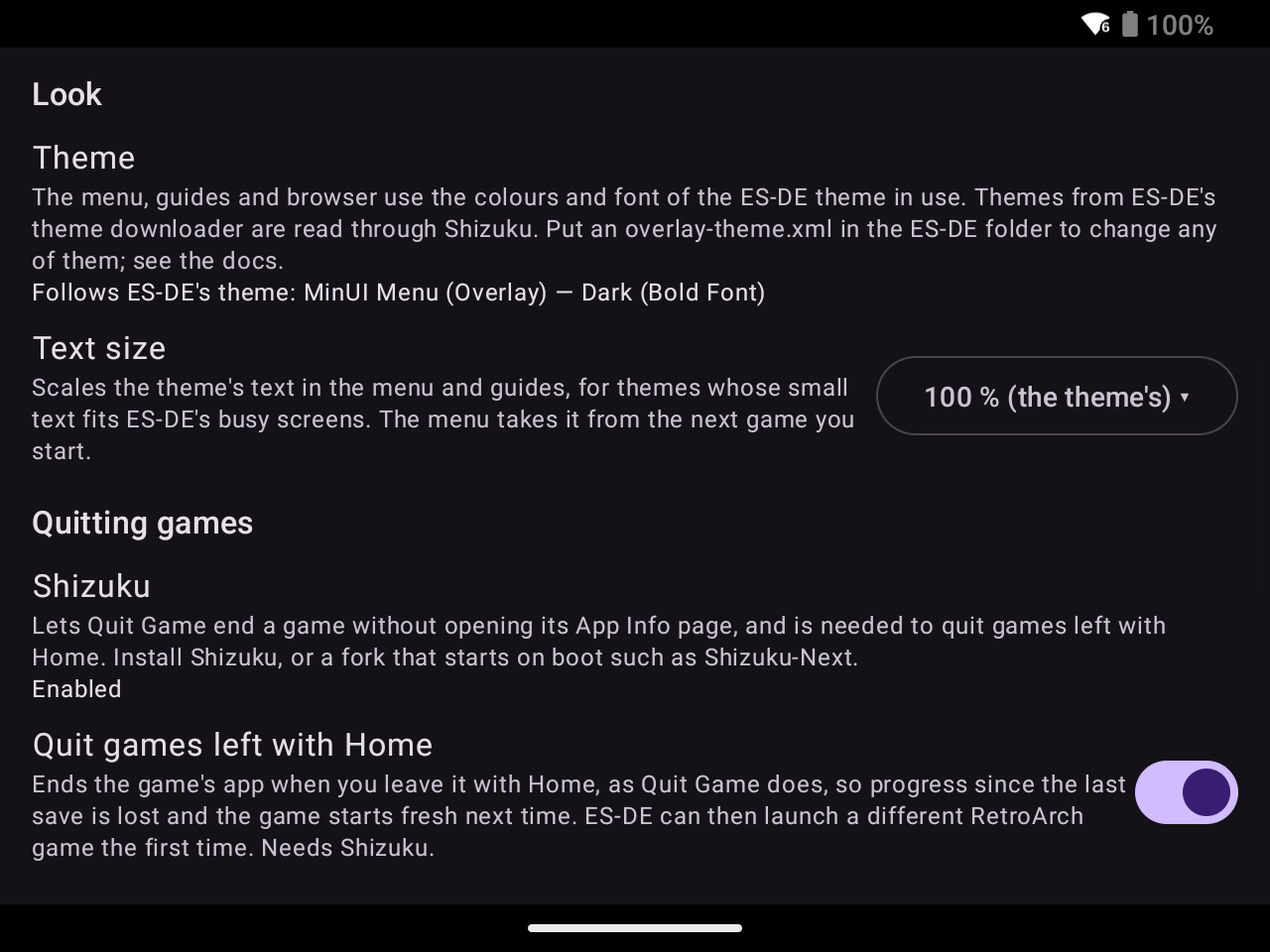
Open ES-DE Overlay (ES-DE also lists it under Android Apps). Its sections are Service, Folders, Capture, Screen, Look, Quitting games, Guides (once the ES-DE folder is set) and Permissions. Set it up from Folders down, then start it under Service:
- ES-DE data folder → Set Folder: the ES-DE folder that holds
downloaded_media,gamelistsandlogs. Open the SD card (or internal storage), chooseES-DE, Use this folder, Allow. The row warns No ES-DE log here when the folder has nologs/es_log.txt. - ROMs folder → Set Folder: the folder that holds your system folders (
snes,gbc…). Android doesn’t allow picking the card’s root, so these are two separate picks. The row warns No ES-DE system folders here when none of its folders is a system in ES-DE’sgamelists. - Optional, under Capture:
- Screenshot media type lists ES-DE’s image types (default Screenshots). Pick the one your theme shows in the gamelist, so captures show there and in the menu.
- Clip length runs from 5 to 60 s in 5 s steps (default 15 s).
- When the media file already exists, Replace saves over it and Skip keeps it and drops the new capture.
- Under Screen: Turn the screen off when ES-DE is idle.
- ES-DE keeps the screen on while it’s in front, even behind its screensaver, so a handheld left in ES-DE stays lit until the battery runs out.
- With this on, the app locks the screen like the power button once ES-DE’s screensaver has run for After the screensaver has run for (At once, then 1 to 30 min; default 9).
- It’s on by default when ES-DE is the Home app.
- ES-DE has to report its screensaver: in ES-DE’s Other Settings, turn on Custom Event Scripts and Debug Mode. The row says so while they’re off.
- It works through the Back button menu (step 7) and needs usage access (step 6), with or without the service started.
- Optional, any time: Saved guides → Manage Guides lists the guides you’ve saved, by game, and deletes the ones you no longer need (see Manage Guides).
- Enable the permission rows: notifications, game sound in clips, read screenshots, display over other apps, usage access, and ignore battery optimization. Each row reads Enabled or Disabled, and its button opens where that changes. When Android no longer shows a permission’s dialog, Enable opens the app’s App Info page instead.
- Back button menu → Enable, then turn on ES-DE Overlay in Android’s accessibility settings.
- Android hands it each controller button before the app in front gets it. It keeps only Back, and only during a game ES-DE launched, a capture or the open menu.
- For Quit Game without Shizuku, it presses Force stop on the game’s App Info page in Settings.
- After updating from a version that opened the menu with Home, turn it on again: the row reads Disabled until you do.
- Retroid’s Prevent pressing Home accidentally isn’t needed.
- Start Service → Start now. One consent covers every capture until the service stops. Optional: Offer to start after boot posts a Tap to start ES-DE Overlay notification after a restart.
- Optional: Quick settings tile → Add puts an ES-DE Overlay on/off tile in the swipe-down shade, and the row reads Added afterwards. Turning the tile on shows the consent dialog and then returns to whatever you were doing.
- Optional, under Quitting games: set up Shizuku, then Shizuku → Allow and Quit games left with Home.
The Look section shows which theme the overlay follows and sets its text size; see Theme.